
We are introducing the BlogIn MCP Server.
The MCP Server allows supported AI assistants, such as Claude and ChatGPT, to securely connect to your company's BlogIn account and work with the internal knowledge available to each user.
Once connected, employees can use their preferred AI assistant to search BlogIn content, find relevant posts and comments, and get answers based on information already shared within their organization.
What is MCP?
MCP, or Model Context Protocol, is an open standard that allows AI assistants to connect to external tools and data sources.
Normally, an AI assistant only has access to the information included directly in the current conversation. By connecting it to BlogIn through MCP, the assistant can also search and read the content available in your company's internal blog.
This makes it possible to ask questions such as:
-
“What have we published about our remote working policy?”
-
“Find recent posts about the new product launch.”
-
“What feedback was shared in the comments on the company strategy post?”
-
“Summarize the latest updates from the engineering team.”
-
“Has anyone written about this issue before?”
Instead of manually browsing through older posts, users can ask questions in their AI assistant and use BlogIn as a source of internal knowledge.
How the BlogIn MCP Server works
Each company on BlogIn has its own MCP Server URL. The URL follows this format:
https://{company_subdomain}.blogin.co/mcp
Replace {company_subdomain} with the subdomain used by your company’s BlogIn account.
For example, if your BlogIn account is available at:
https://acme.blogin.co
Your MCP Server URL will be:
https://acme.blogin.co/mcp
This URL is added to a supported AI assistant as a custom MCP server or connector.
During the connection process, the user will be asked to sign in to BlogIn and authorize the AI assistant. Once authorized, the assistant can search and read the BlogIn content available to that user.
Access permissions are preserved. The AI assistant can only access content that the connected user is already allowed to view in BlogIn. Connecting the MCP Server does not give users access to restricted posts, teams, pages, or other content they could not otherwise see.
How administrators can enable the MCP Server
The MCP Server must first be enabled by a BlogIn administrator.
To enable it:
-
Open the Settings page in BlogIn.
-
Select the Advanced tab.
-
Find the MCP Server section.
-
Turn on the MCP Server option.
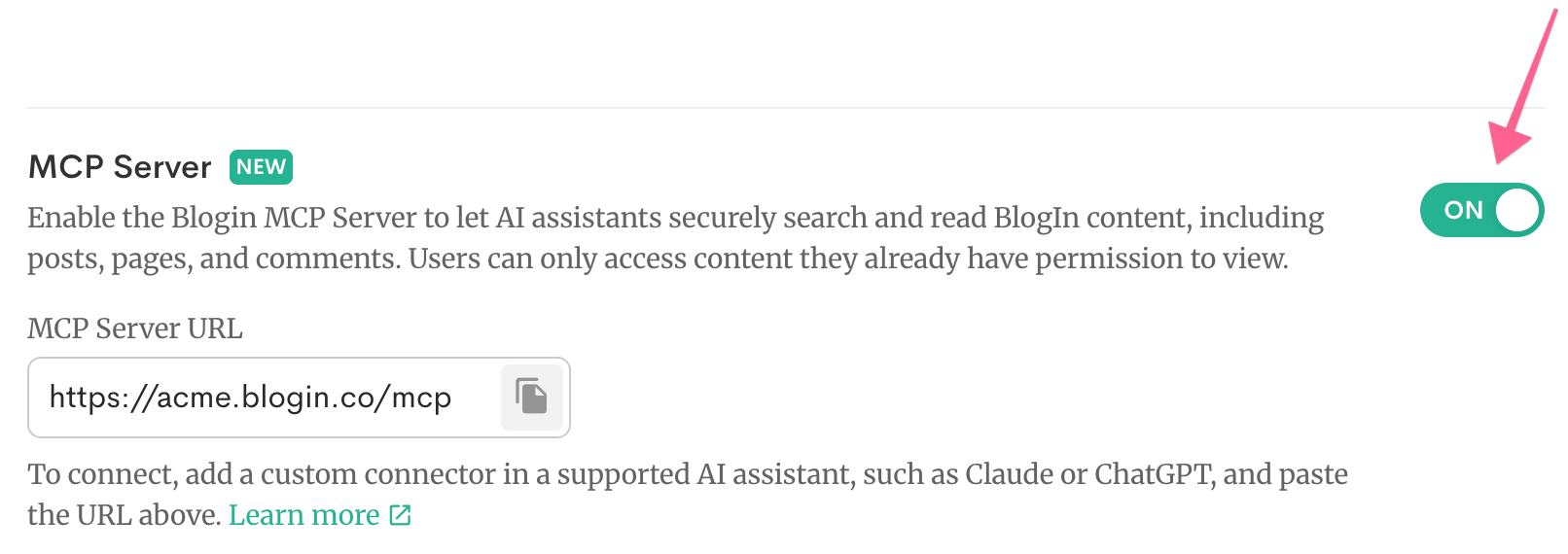
Once enabled, the MCP Server becomes available to all users within the company.
Administrators only need to enable it once. Each user then connects their own AI assistant using their individual BlogIn account and existing access permissions.
Where users can find the connection information
After the MCP Server has been enabled, all users, including non-administrators, can find the connection details in BlogIn.
To find them:
-
Open your BlogIn profile page.
-
Go to the Integrations section.
-
Find the MCP Server integration.
-
Copy the displayed MCP Server URL.
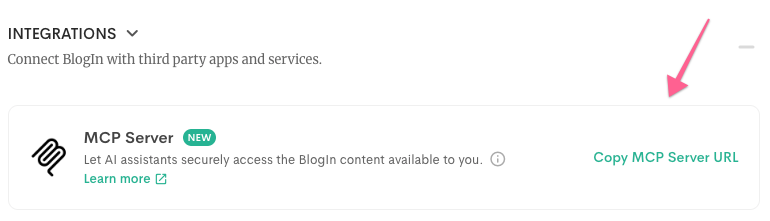
The Integrations section also provides brief instructions for connecting BlogIn to a supported AI assistant.
Connecting BlogIn to an AI assistant
The exact steps vary between AI assistants, but the general process is similar:
-
Open the connectors, integrations, or MCP settings in your AI assistant.
-
Add a new custom connector or MCP server.
-
Paste your company’s BlogIn MCP Server URL.
-
Sign in to your BlogIn account when prompted.
-
Review and authorize the requested access.
For example:
https://yourcompany.blogin.co/mcp
After the connection is authorized, you can begin asking the assistant to search or read information from BlogIn.
Depending on the AI assistant, you may need a plan or version that supports custom connectors or remote MCP servers. The name and location of these settings may also differ between Claude, ChatGPT, and other MCP-compatible applications.
Turning your internal blog into accessible company knowledge
BlogIn already gives organizations a central place to publish internal news, share knowledge, document decisions, and encourage discussion.
The MCP Server makes that accumulated information easier to access from the tools employees are increasingly using in their everyday work.
Employees no longer need to remember exactly when something was published or which category it appeared in. They can describe what they are looking for in natural language and ask their AI assistant to help locate, summarize, or explain the relevant BlogIn content.
This can be especially useful for:
-
Finding policies and internal documentation
-
Catching up on company updates
-
Researching past decisions
-
Discovering knowledge shared by other teams
-
Reviewing discussions and comments
-
Helping new employees find existing information
-
Summarizing content related to a project or topic
Get started with the BlogIn MCP Server
Administrators can enable the MCP Server from the Advanced tab on the Settings page.
Once enabled, all users can find their company's MCP Server URL in the Integrations section of their profile page and connect BlogIn to a supported AI assistant such as Claude or ChatGPT.
The BlogIn MCP Server helps make the knowledge already shared across your organization easier to find, understand, and use.