To make your Blogin posts and pages searchable in Microsoft 365 and Copilot, set up Microsoft’s Enterprise Websites Cloud connector. It crawls your Blogin content and adds it to Microsoft Search and Copilot.
Step-by-Step Setup Instructions
-
Generate an API Key in Blogin:
- Log in to Blogin as an administrator and go to Settings → API.
- Click Create new API Key. In the modal dialog, select the Microsoft 365 crawl connector, then click Add.

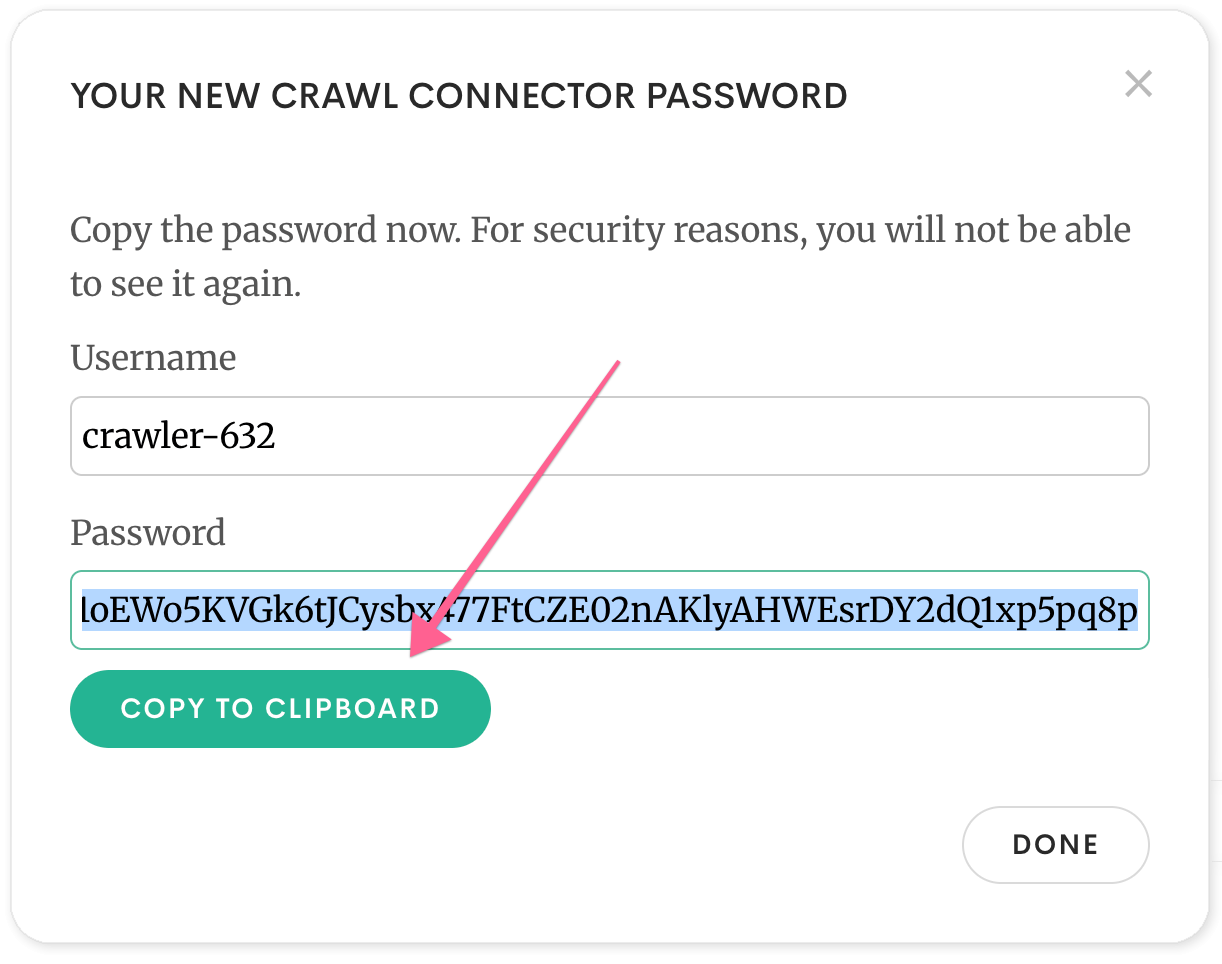
- Save the password when it appears in the modal; for security reasons, you will not be able to see it again.
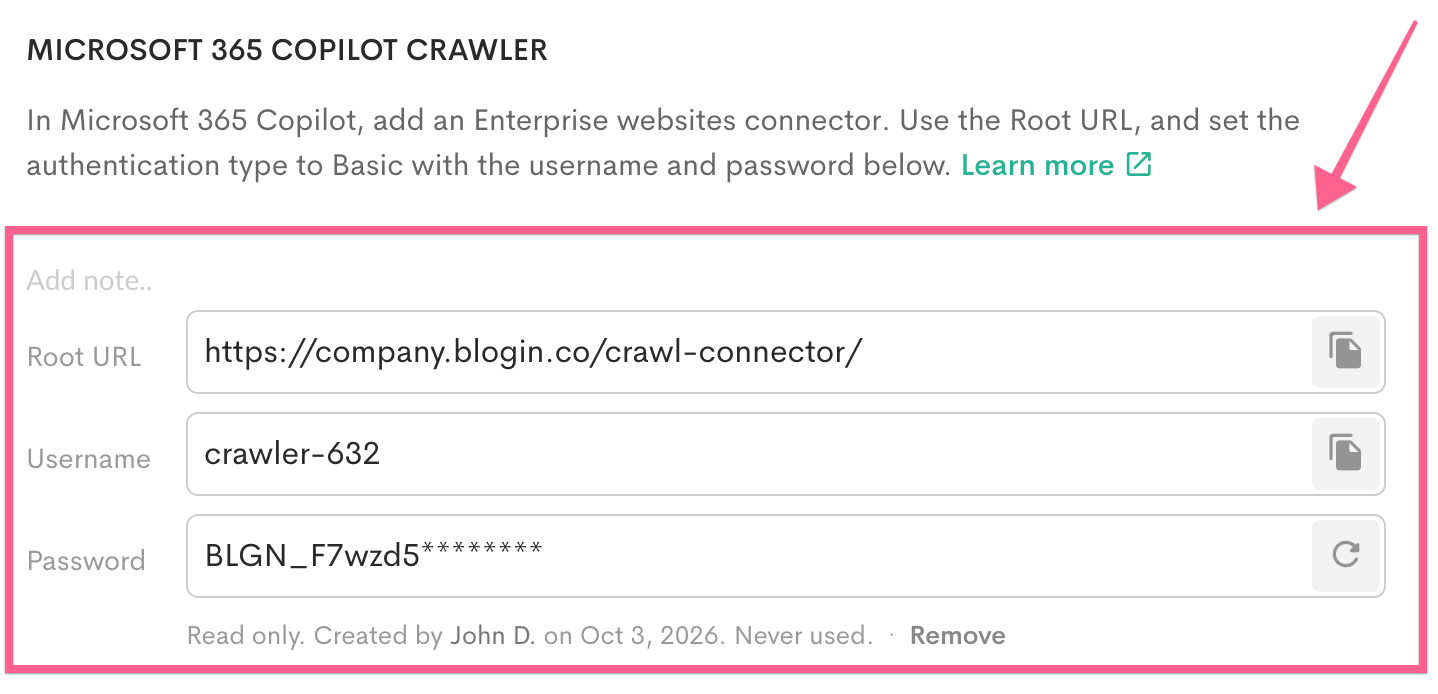
- In the new Microsoft 365 Copilot crawler section, copy the Root URL and Username, and use the Password you saved in the previous step. You will need this in later steps.
- Optionally, add a note identifying its Microsoft 365 connection.
 Note: Blogin includes published posts and pages visible to the user who created the key. Microsoft’s Enterprise Websites Cloud connector makes indexed content available to everyone in your Microsoft 365 organization.
 -
Access Microsoft 365 Admin Center:
- Go to Microsoft 365 admin center and sign in with an account that can manage Copilot connectors.
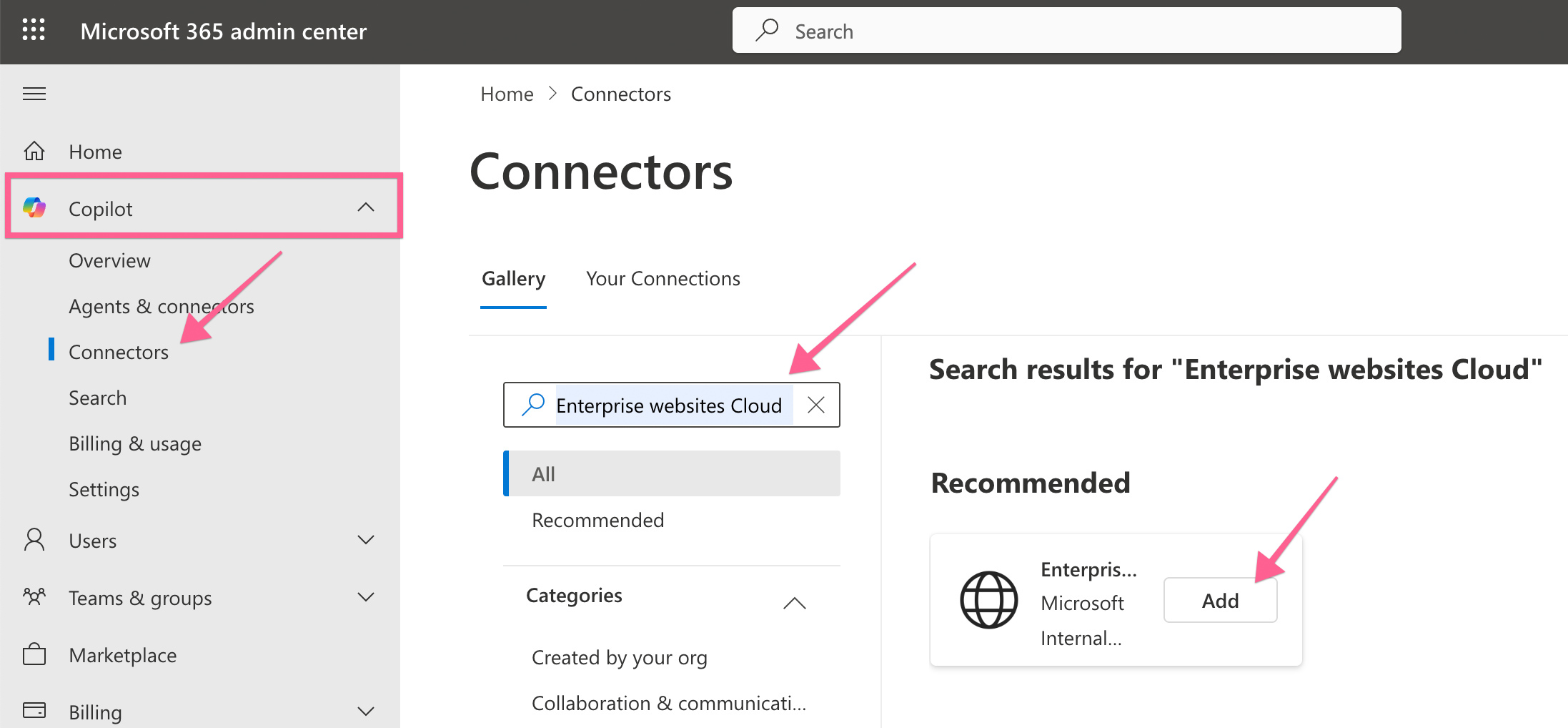
- In the left menu, open Copilot → Connectors.
- Add a New Connector:
- Click the Add connection button.
- Search for "Enterprise Websites Cloud" and click Add.
- Configure the Connector:
- In the configuration screen:
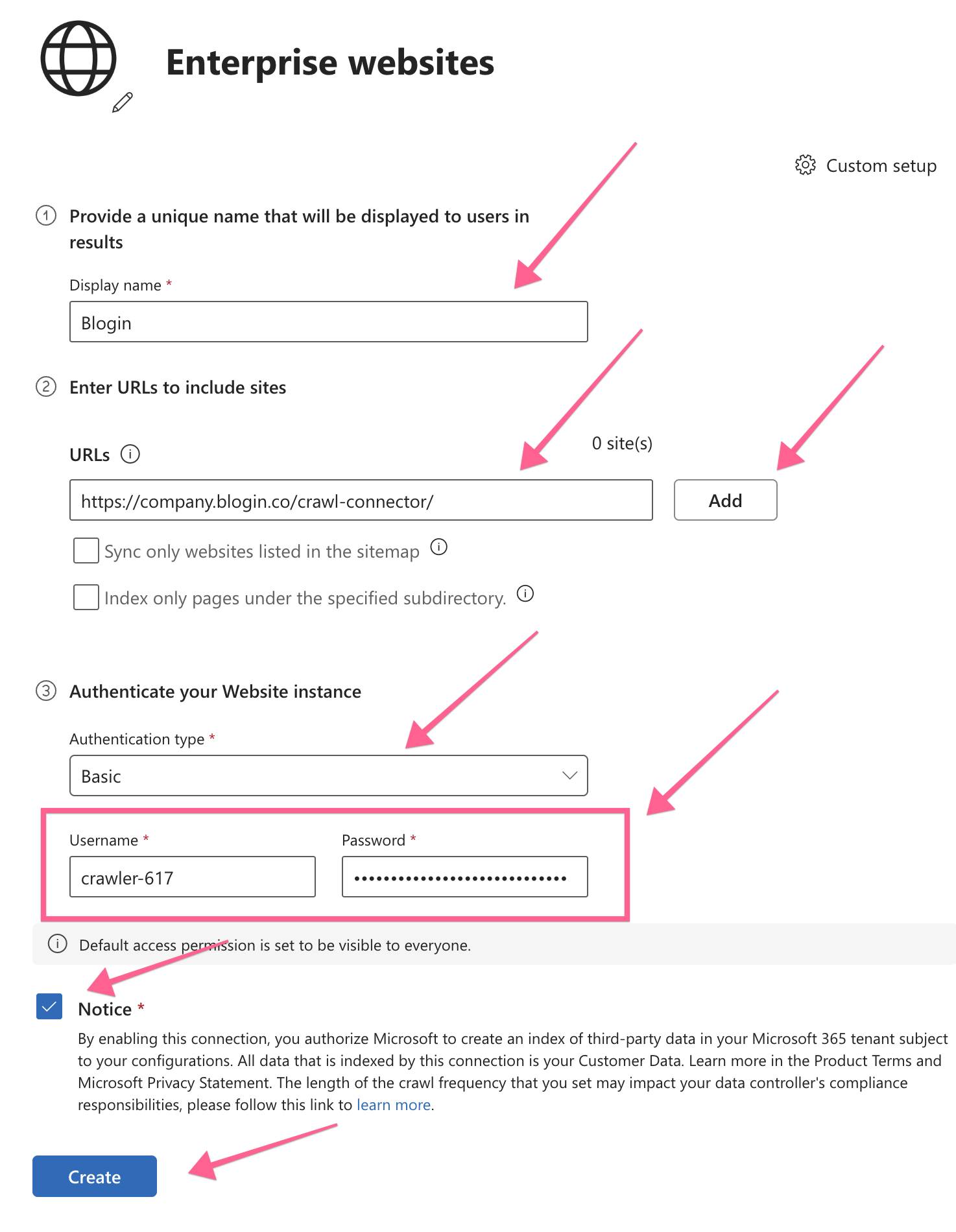
- Display Name: Enter a recognizable name, such as Blogin or your blog’s name.
- URLs: Paste the Root URL copied from Blogin. It has this form:
https://<subdomain>.blogin.co/crawl-connector/Click Add to add the URL.
- Authentication Type: Select Basic authentication. Paste the Username and Password from the Blogin API key you created in Step 1 into the corresponding fields.
- Acknowledgment: Check the notice box confirming you understand the content will be crawled.
- Click Create to finish setup.
- In the configuration screen:
Indexing & Search Availability
- Microsoft 365 will begin crawling your Blogin content shortly after setup. Initial indexing may take some time.
- On the next screen, add a connector description to enable this connector and improve Copilot search within Microsoft 365. You can use the following text for the Blogin connector description (feel free to modify to fit your needs):
Blogin Connector description
BlogIn is our internal company knowledge base containing company announcements, policies, procedures, onboarding guides, how-to articles, and employee-authored posts. Use it for questions about internal processes, workplace knowledge, policies, and company updates.
Keywords: BlogIn, intranet, knowledge base, company blog, policies, procedures, how-to, announcements
Click Save to save the description.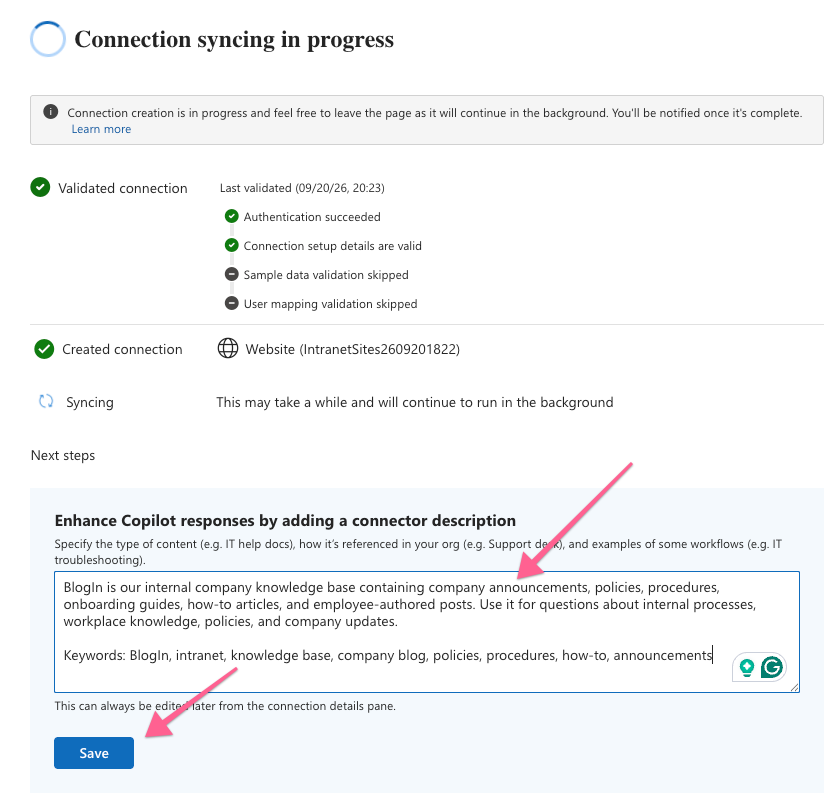 Important
If you miss or skip adding the connector description, data from this connection may not appear in Copilot Chat or Search Results. You can change this by editing the connector in Microsoft 365. - Once indexing is complete, you’ll see the number of items (posts and pages) available for search.
- Microsoft 365 will continue to crawl your content automatically once per day.
- You can also trigger a manual crawl at any time by selecting your connector in the list and choosing the option to refresh the content.
Need Help?
If you have any questions or encounter issues during the setup, our support team is here for you — reach out via live chat or email anytime. We’re happy to help!